How to install a BookBrowse icon to your iPad Home Screen

BookBrowse on the iPad

Apple's Safari browser makes it easy to add an icon on your Home Screen that will automatically open to BookBrowse. Here are the quick and easy steps to set this up:

First, open your Safari browser by tapping on the Safari icon.


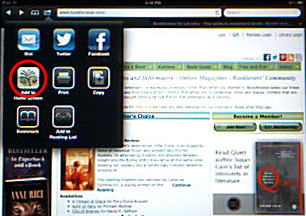
Navigate to www.bookbrowse.com. Once the page has finished loading, tap on the Share button at the top of your screen (circled in the example below):


Safari's Share menu should now be displayed on top of your Safari browser window. Typically you will see a number of icons, one of which is the Bookbrowse Logo, with the words "Add to Home Screen". Select this.


The Safari "Add to Home" window will now appear; this enables you to change the name of the app, which will be displayed under the icon when you are finished – we suggest you change this to BookBrowse.

Once you have changed the name, simply tap the Add button. You are done! You should now be taken to your iPad's Home Screen, where you will see that the link to BookBrowse has been created.

BookBrowse Book Club

Book Jacket
The Hunter's Daughter
by Nicola Solvinic

Members Recommend

Who Said...

Harvard is the storehouse of knowledge because the freshmen bring so much in and the graduates take so little out.

Click Here to find out who said this, as well as discovering other famous literary quotes!

Book
Trivia

  • Book Trivia

    Can you name the title?

    Test your book knowledge with our daily trivia challenge!

Wordplay

Solve this clue:

W the C A the M W P

and be entered to win..

Your guide toexceptional          books

BookBrowse seeks out and recommends the best in contemporary fiction and nonfiction—books that not only engage and entertain but also deepen our understanding of ourselves and the world around us.